
Hello friends, how can you all hope that in this article of today you will read about the Arrange Menu of CorelDRAW, read it till the last
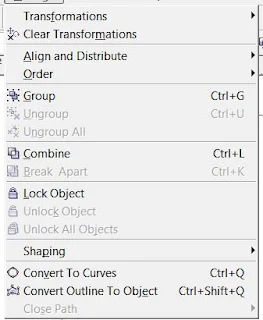 1. Transformation The position size of any object can give the effect of angle and all other things, that is, it can set its rotation according to itself.
Description Of Arrange Menu
 1. Transformation The position size of any object can give the effect of angle and all other things, that is, it can set its rotation according to itself.
2. Clear Transformation Use to eradicate the effect applied with the help of transformation.
3. Align and Distribute Used to set any object from another object to the left right center and other distributes.
If after selecting any two objects, what will work on pressing the button according to the image below is written in the left side.
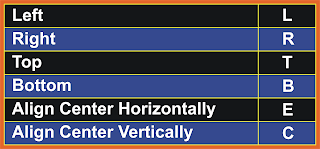 Note- If you want to use for an object, then first select the object you want to Align, then select the second object with the Shift button between which to Align, then use the shortcut keys.
4. Order With the help of this option, you can set your selected object up and down and can be read in detail below-
If after selecting any two objects, what will work on pressing the button according to the image below is written in the left side.
 Note- If you want to use for an object, then first select the object you want to Align, then select the second object with the Shift button between which to Align, then use the shortcut keys.
4. Order With the help of this option, you can set your selected object up and down and can be read in detail below-
- To Front Used to top the selected object from all the objects at once.
- To Back Used to lower the selected object from all the objects at once.
- Forward One The selected object is used to top all the objects one by one.
- Back One Used to lower the selected object from all the objects one by one.
- In Front of Use the selected object to move above any other object. As soon as you select this option, your cursor will become an arrow and your object will be above the object you click that arrow.
- Behind It is also like the In front of mentioned above but it is used to rear an object.
- Reverse Reverse means that like you have drawn 5 objects which have been drawn first, it will be at the bottom as soon as you select everyone and reverse it will just reverse.
5. Combine Used to combine one or more objects in parallel.
6. Break Apart Used to un-combine a combined object.
7. Lock Object Used to lock any object, it keeps that object in its place.
8. Unlock Used to unlock a locked object. You can also unlock it by pressing the right button of the mouse and clicking on the unlock option.
9. Convert To Curve After using rectangular, circle and all other objects to convert them to curve, it is used to create different design with shape tool.
10. Convert Outline to object After breaking the outline of any object, use the outline to use it as an object.
11. Close Path To make a drawn line a complete line, we use a closed path. So that the two ends of the line join together. Or you can also say that after drawing a single line, you can use it as an object.


0 Comments
Please don't Add spam links,
if you want backlinks from my blog contact me on rakeshmgs.in@gmail.com